Settings

Acquire Meetings
Availability
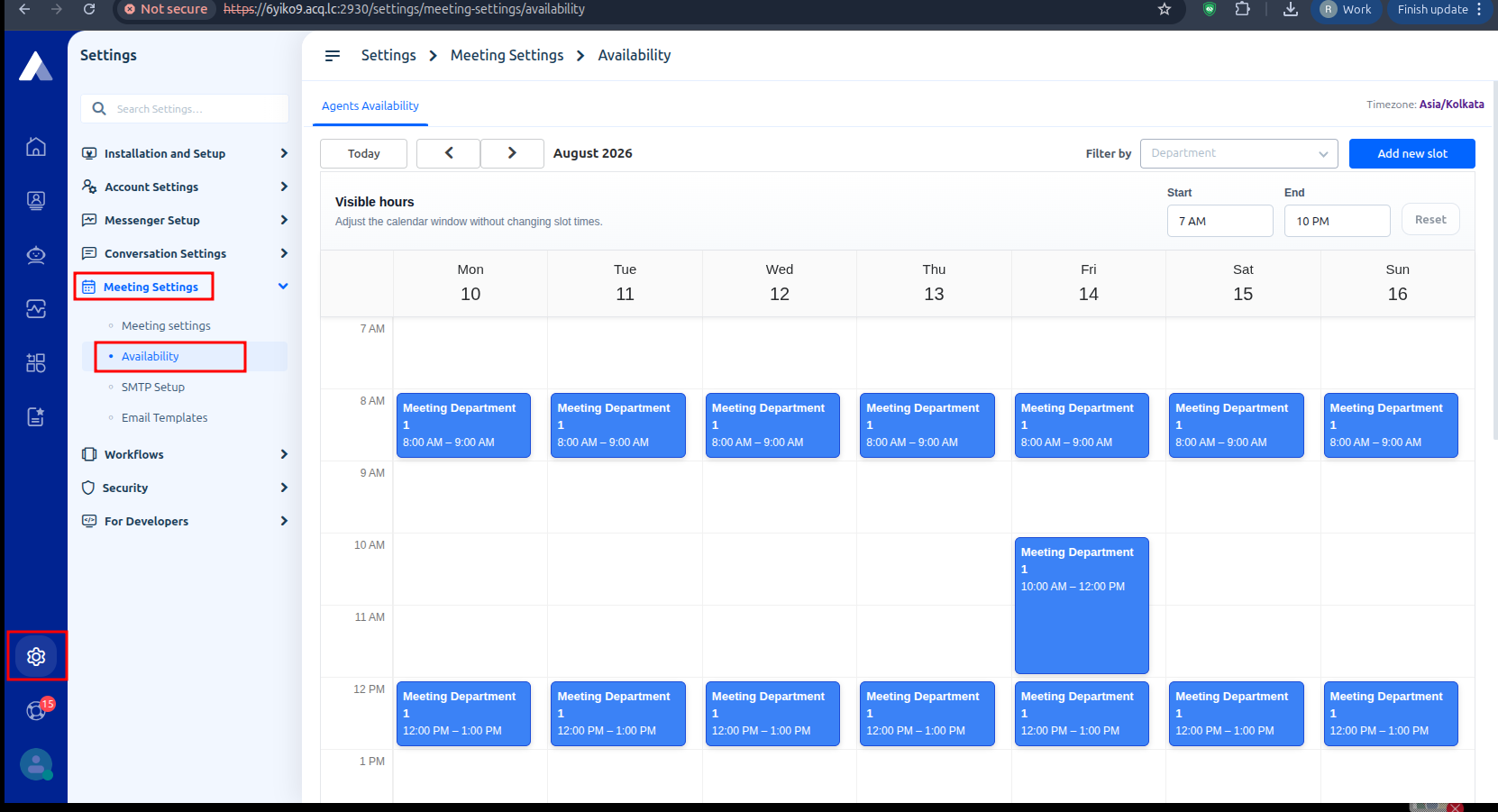
The Availability section allows administrators to configure the time periods during which a department is available for meeting bookings.
Availability can be created and managed directly on the calendar by dragging time slots. The configured availability determines which booking slots are shown to visitors.
Access Department Availability
Steps:
Go to:
Settings → Meeting Settings → Availability
To add availability:
- Click and drag over the desired time range on the calendar.
- Adjust the selected time range as needed.
- Choose how the availability should repeat:
Does Not Repeat – The availability applies only to the selected date.
Daily – The availability repeats every day.
Weekly – The availability repeats weekly on the selected day. - Select a department for it
- Save the availability.
Expanding or Adjusting Availability
An existing availability period can be expanded or shortened directly from the calendar.
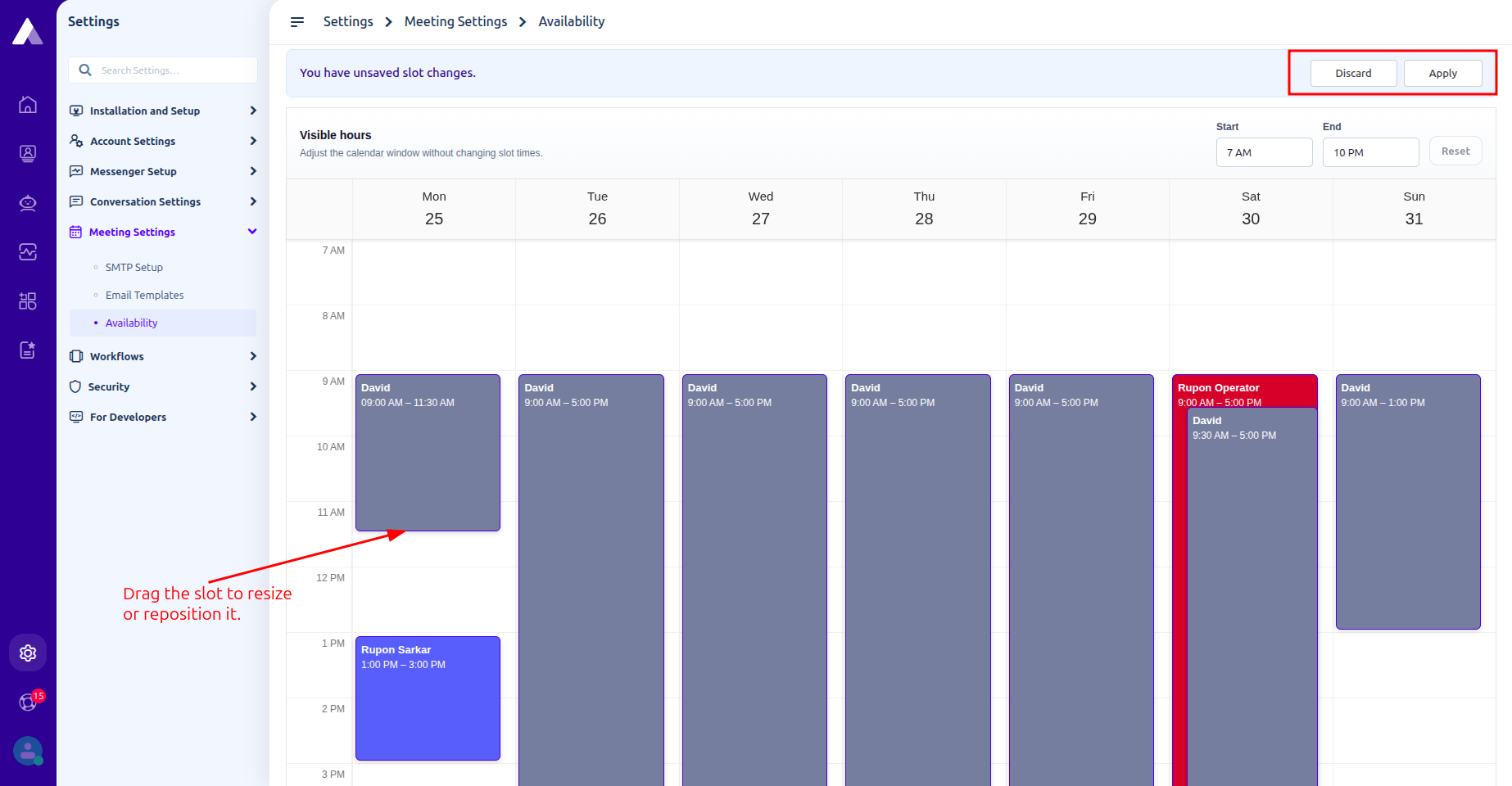
Drag the edge of an availability block to adjust its start or end time. This makes it easy to extend or reduce the department's available booking hours without creating a new availability period.
Edit Existing Slots
Actions Available
- Drag to Resize slot duration
- Move slots
- Double click on slot to Change slot color or delete slot
How Booking Slots Are Generated
The system automatically divides the configured department availability into individual booking slots based on the configured slot duration.
For example, if:
Department availability: 10:00 AM – 12:00 PM
Slot length: 30 minutes
Visitors will see the following available booking slots:
10:00 AM – 10:30 AM
10:30 AM – 11:00 AM
11:00 AM – 11:30 AM
11:30 AM – 12:00 PM
This means administrators only need to define the department's available time range. The system automatically generates the individual meeting slots according to the configured slot duration.
Video Ref:
Email Notifications
The Meetings system can send emails using custom SMTP settings.
SMTP Setup
Steps
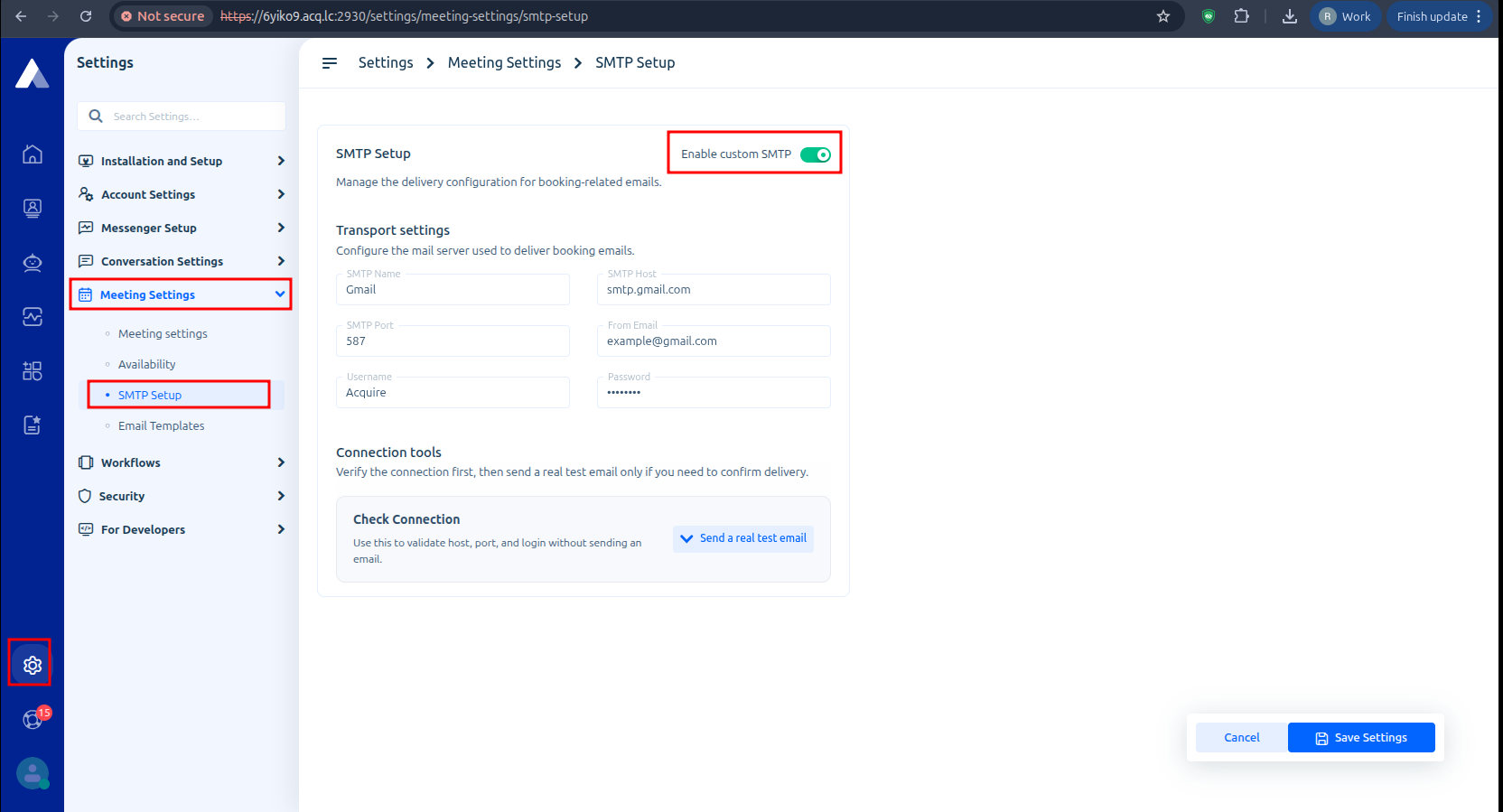
- Open Meeting Settings → SMTP Setup
- Enable custom SMTP
- Enter SMTP credentials
- Verify the connection
- Send a test email
- Save configuration
SMTP Fields
SMTP Name -> SMTP name
SMTP Host -> Mail server host
SMTP Port -> SMTP server port
SMTP Email -> Sender email
Username -> Display name
Password -> SMTP password
Email Templates
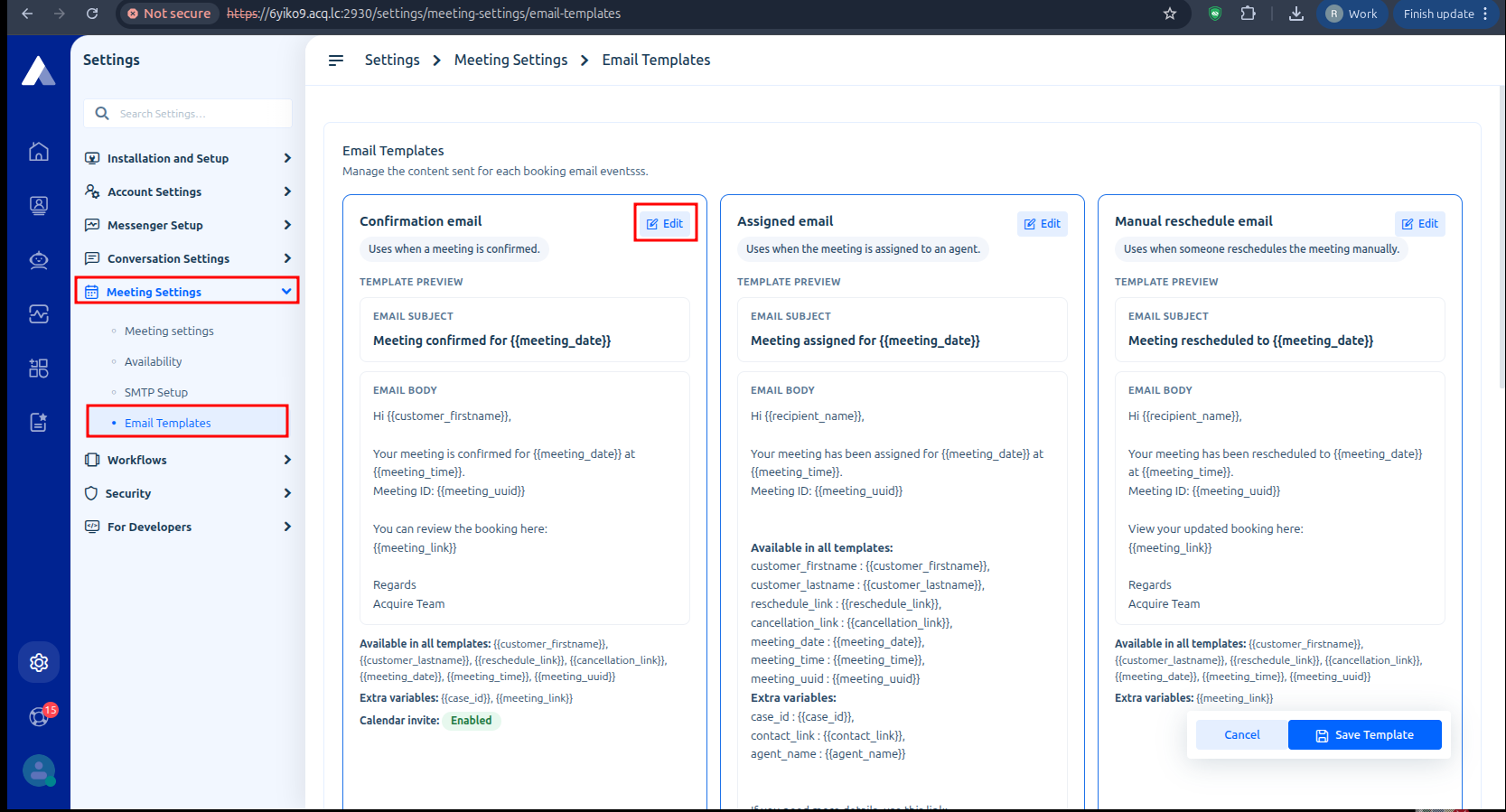
Open Meeting Settings → Email Templates
Administrators can customize email templates for:
1. Confirmation email : Uses when a meeting is confirmed.
2. Assigned email : Uses when the meeting is assigned to an agent.
3. Manual reschedule email: Uses when someone reschedules the meeting manually.
4. Cancellation email: Uses when the meeting is cancelled.
5. Reschedule link email : Uses when you send a reschedule link.
6. Reminder email: Uses before the meeting as a reminder.
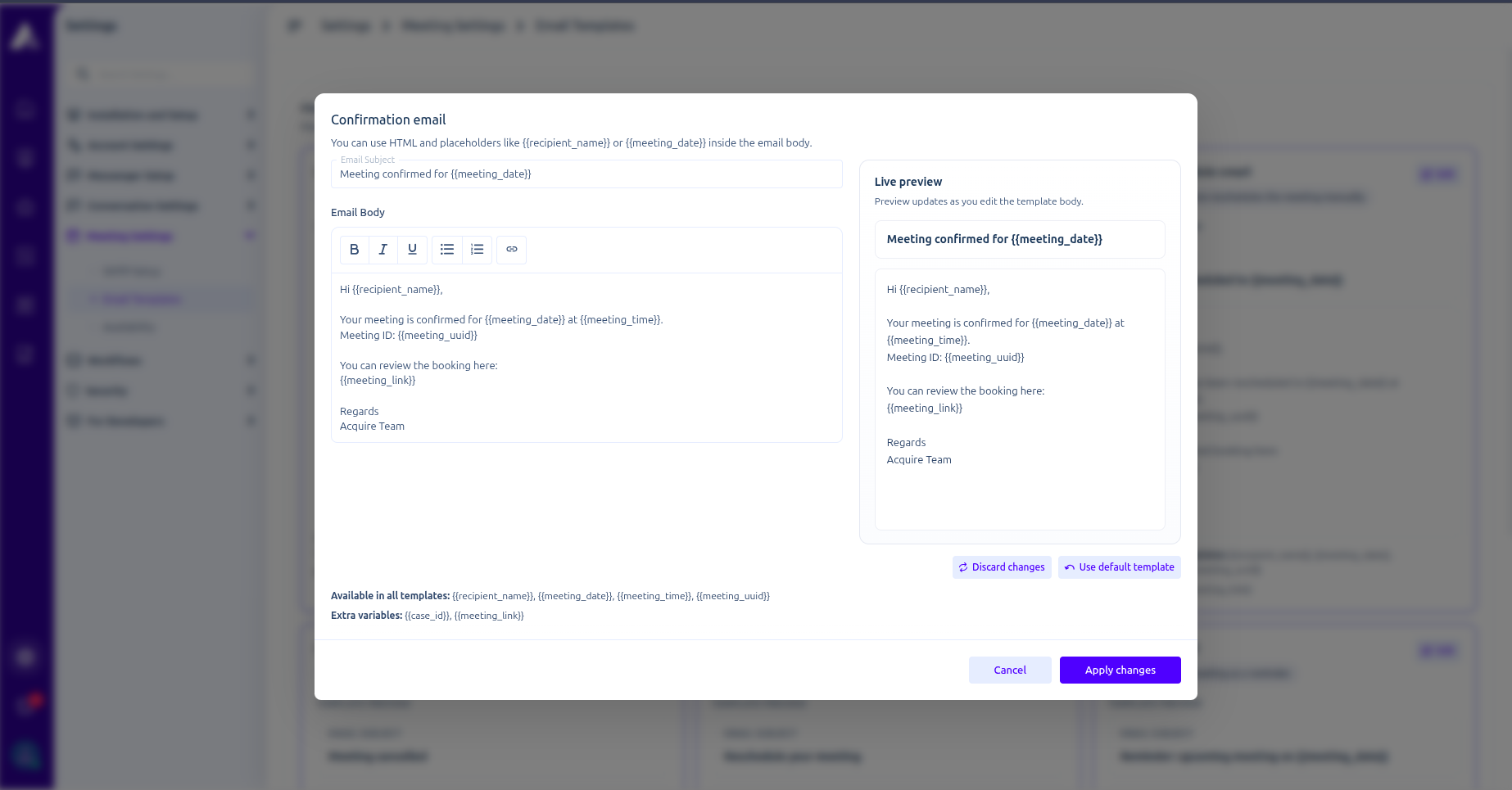
Template Variables
You can use dynamic variables inside email templates.
Common Variables
{{recipient_name}} Visitor name
{{meeting_date}} Meeting date
{{meeting_time}} Meeting time
{{meeting_uuid}} Unique booking ID
{{meeting_link}} Meeting URL
{{reschedule_link}} Reschedule URL
{{case_id}} Case id for the chat
{{contact_link}} Contact link to view chats during booking
{{previous_slot}} Previous slot time if cancel/reschedule
{{reminder_minutes}} Reminder minutes left to start a meeting
Video ref:
Installing Acquire Meetings
Meetings can open directly inside the Acquire chat widget. Before using the Meetings system, administrators must first install the Acquire Meeting application from the App Store.
Once installed, the meeting functionality can be integrated into:
- Sequence Bots
- Workflows
This allows businesses to automatically trigger meeting booking experiences during conversations.
Install Acquire Meeting App
Steps
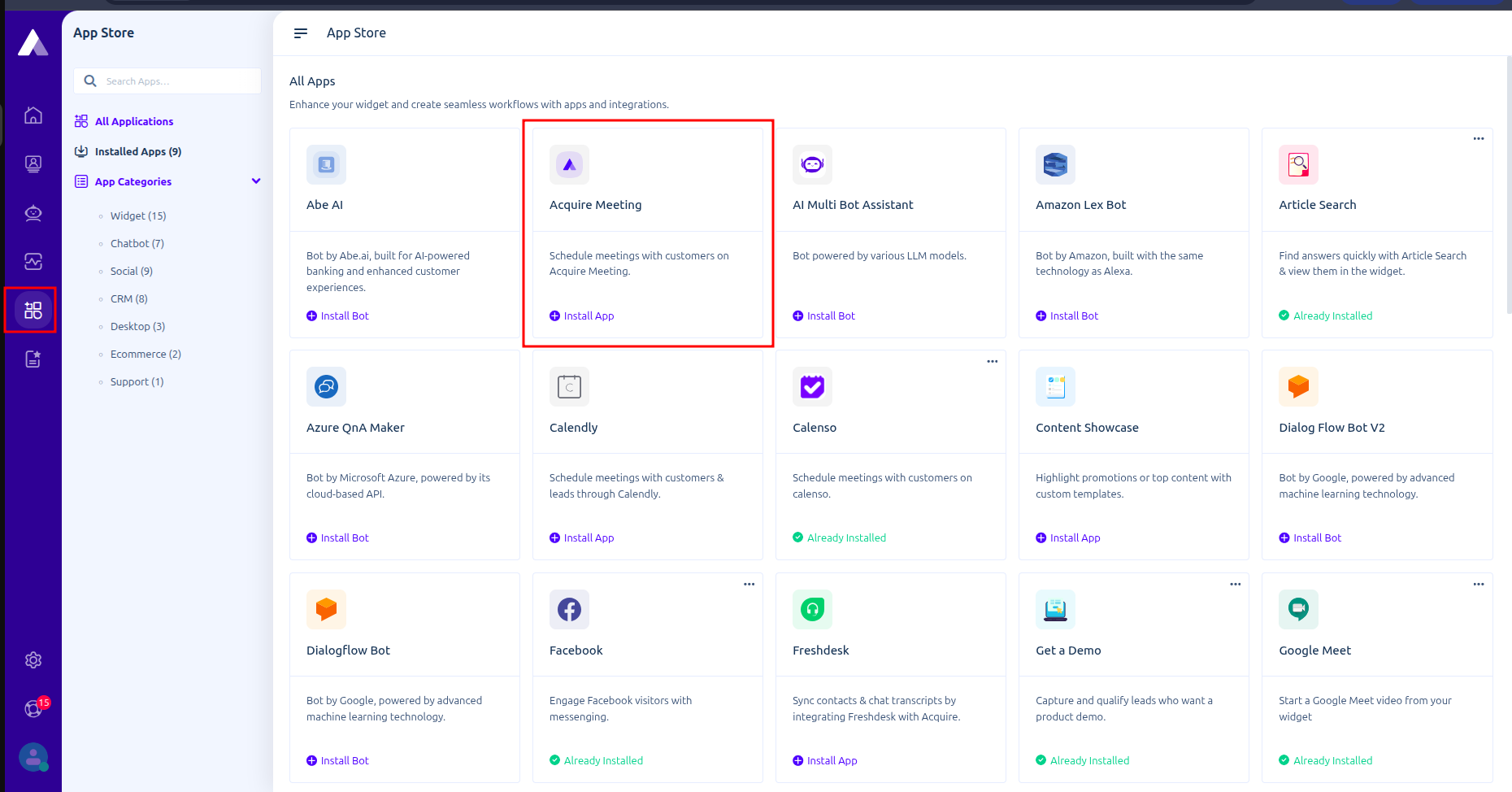
- Open the App Store
- Search for Acquire Meeting
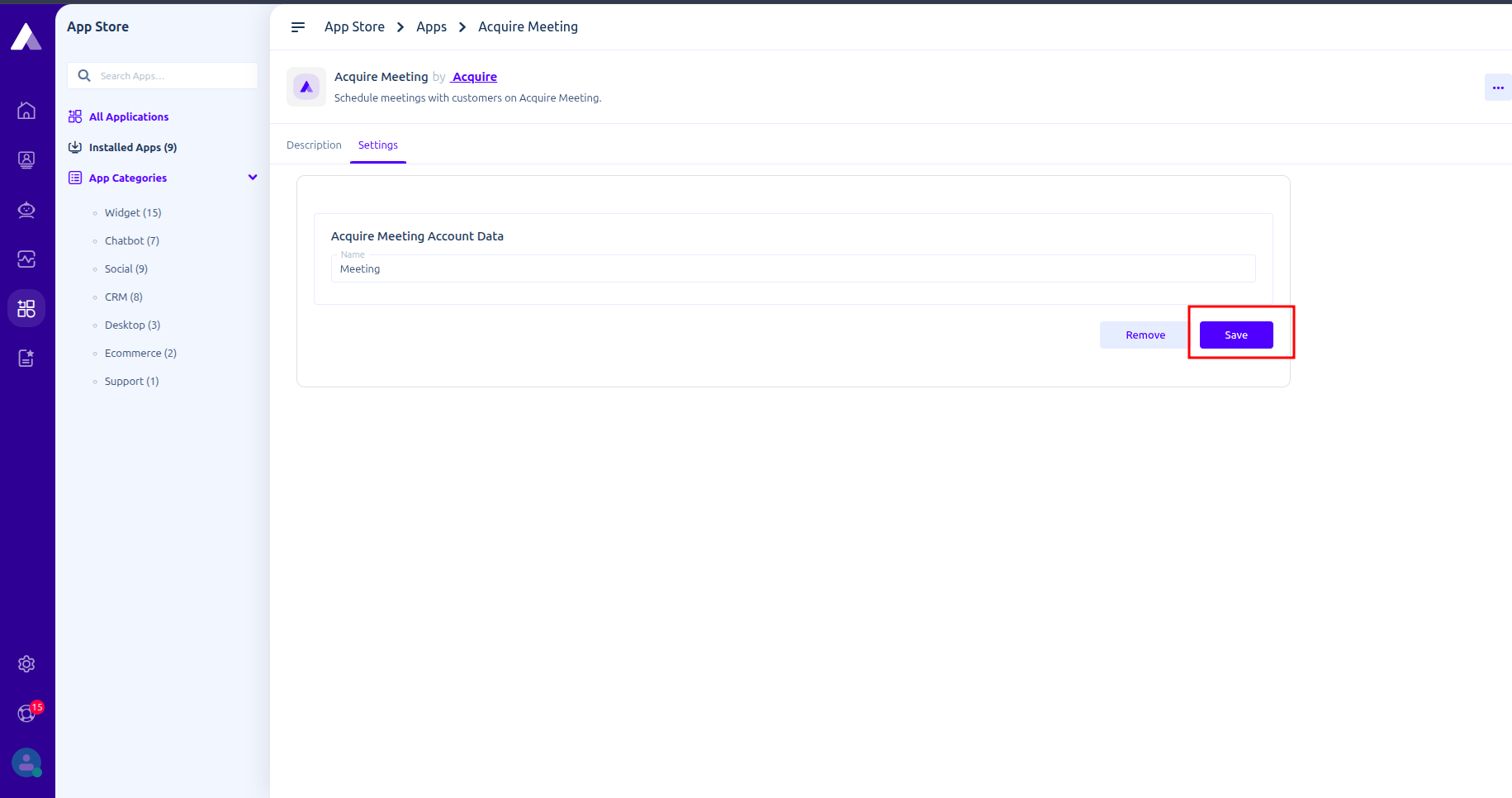
- Click Install App
Verify Installation
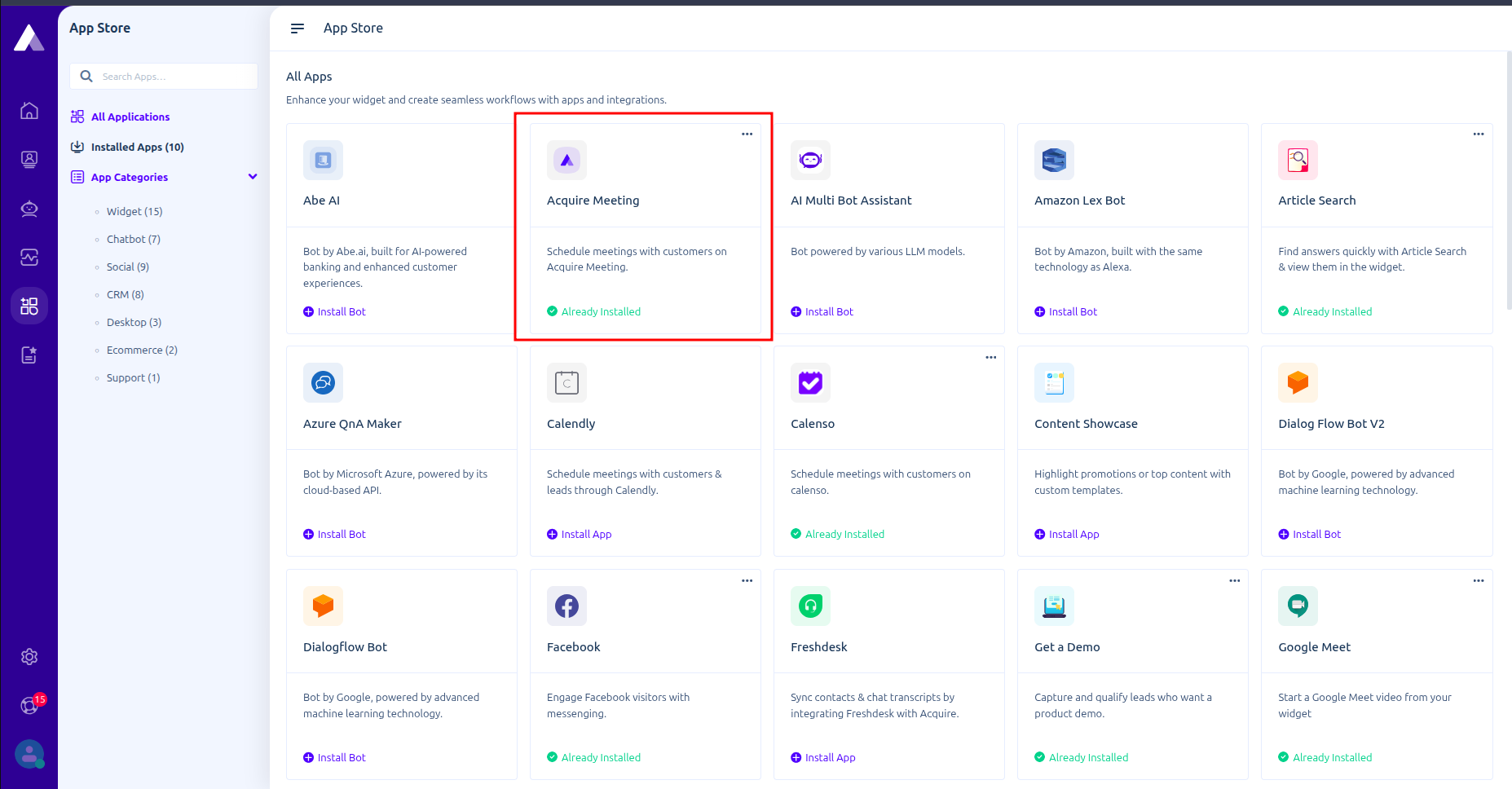
After installation:
- The Meetings module becomes available in the system
- Acquire Meeting will show ‘Already Installed’
Video ref:
Use Acquire Meetings in Sequence Bots
Administrators can add meeting booking actions directly inside Sequence Bots
- Create/open any sequence bot
- Open/edit a branch
- Click on ‘Add another interaction’
- Click ‘Add Chat widget
- Then click on app name on ‘Choose widget’
- Select Acquire Meeting
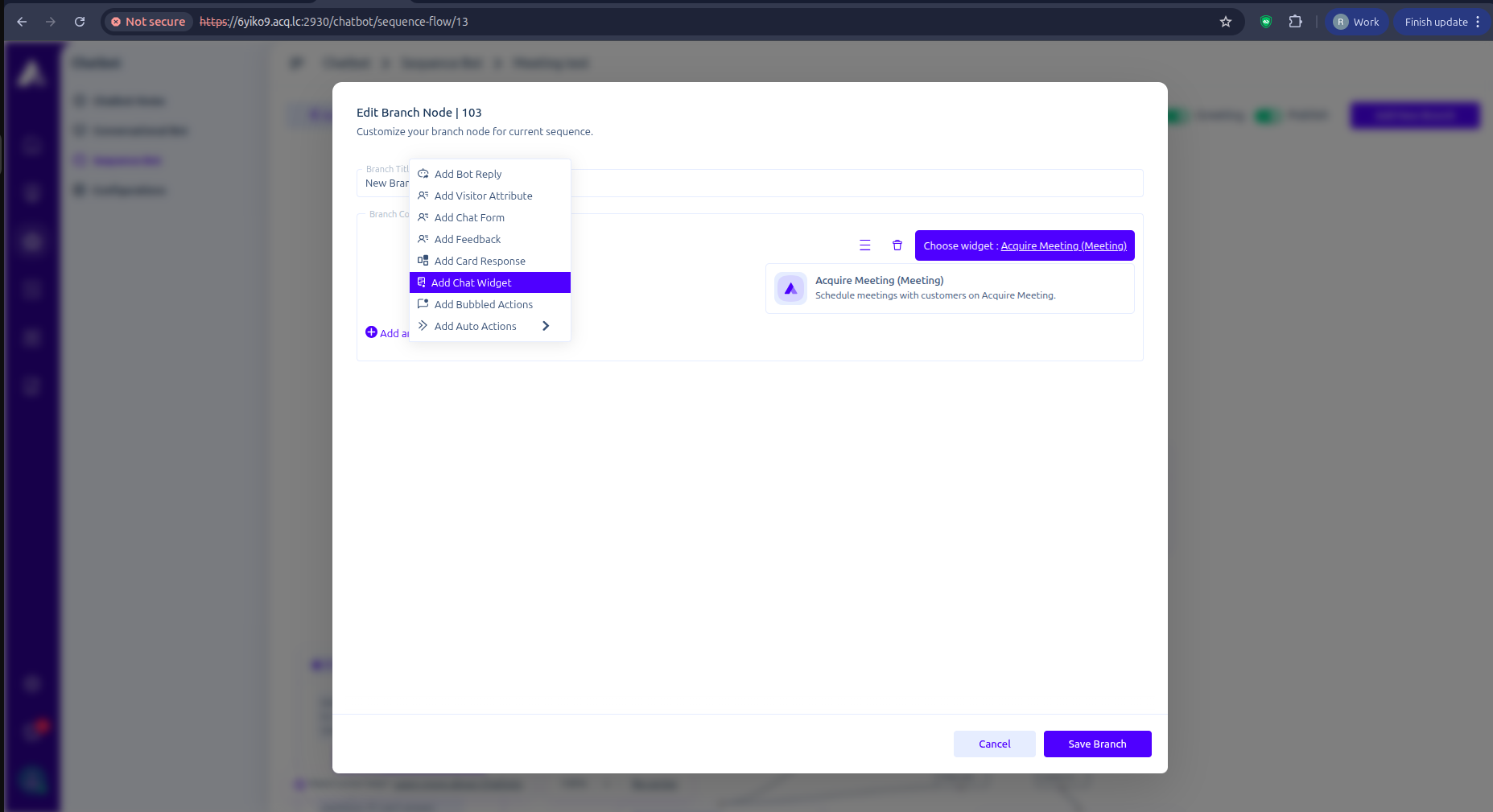
Now set this with any workflow and it will visible on chat widget
Video ref:
Booking Meetings
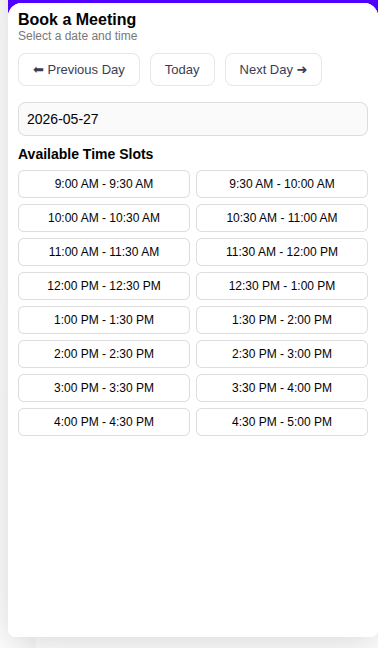
Visitors can book meetings through Chat widget overlays:
Booking Flow
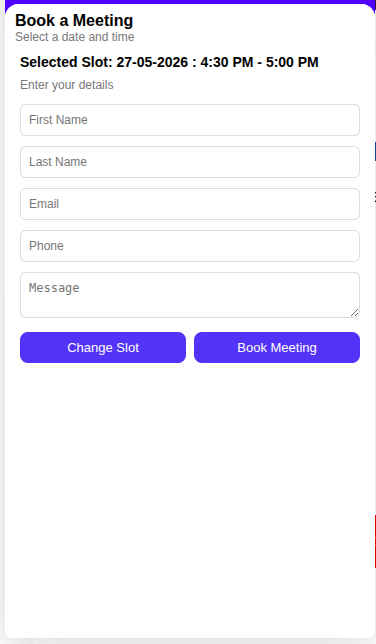
The booking process consists of:
- Choosing a date
- Selecting an available time
- Entering visitor details
- Confirming the booking
Visitor Information Collected
- First Name
- Last Name
- Phone Number
- Message
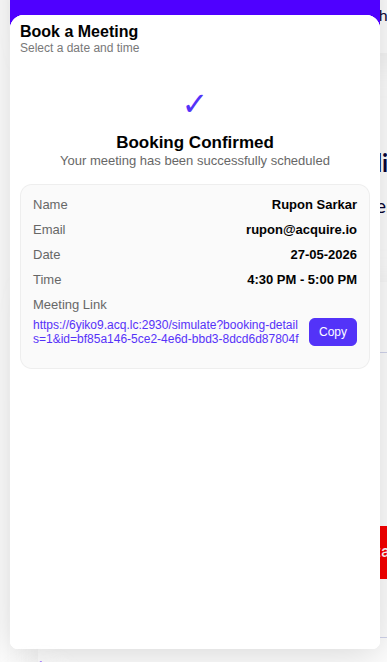
Booking Confirmation
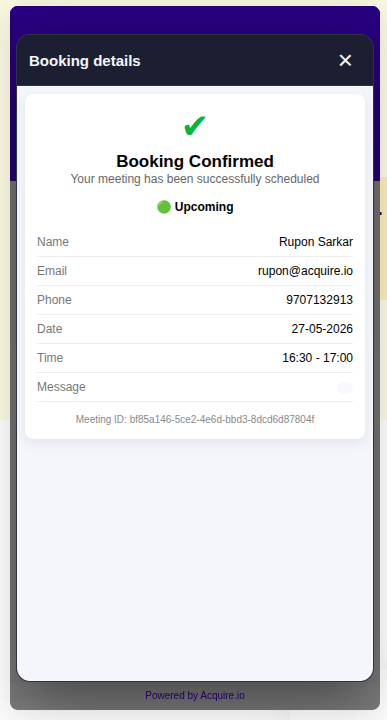
After booking:
- A confirmation page is displayed
- Confirmation email is sent
- Meeting details become available through the booking link
Agent-Initiated Meeting Booking
In addition to visitor self-booking, agents can also schedule meetings directly from an active conversation.
This is useful when:
- A visitor requests a meeting during a chat
- An agent wants to schedule a follow-up call
- A support session needs to be continued at a later time
- A sales representative wants to arrange a product demo
Create a Meeting from a Conversation
Agents can create a meeting directly from the conversation interface without requiring the visitor to go through the booking flow.
Steps
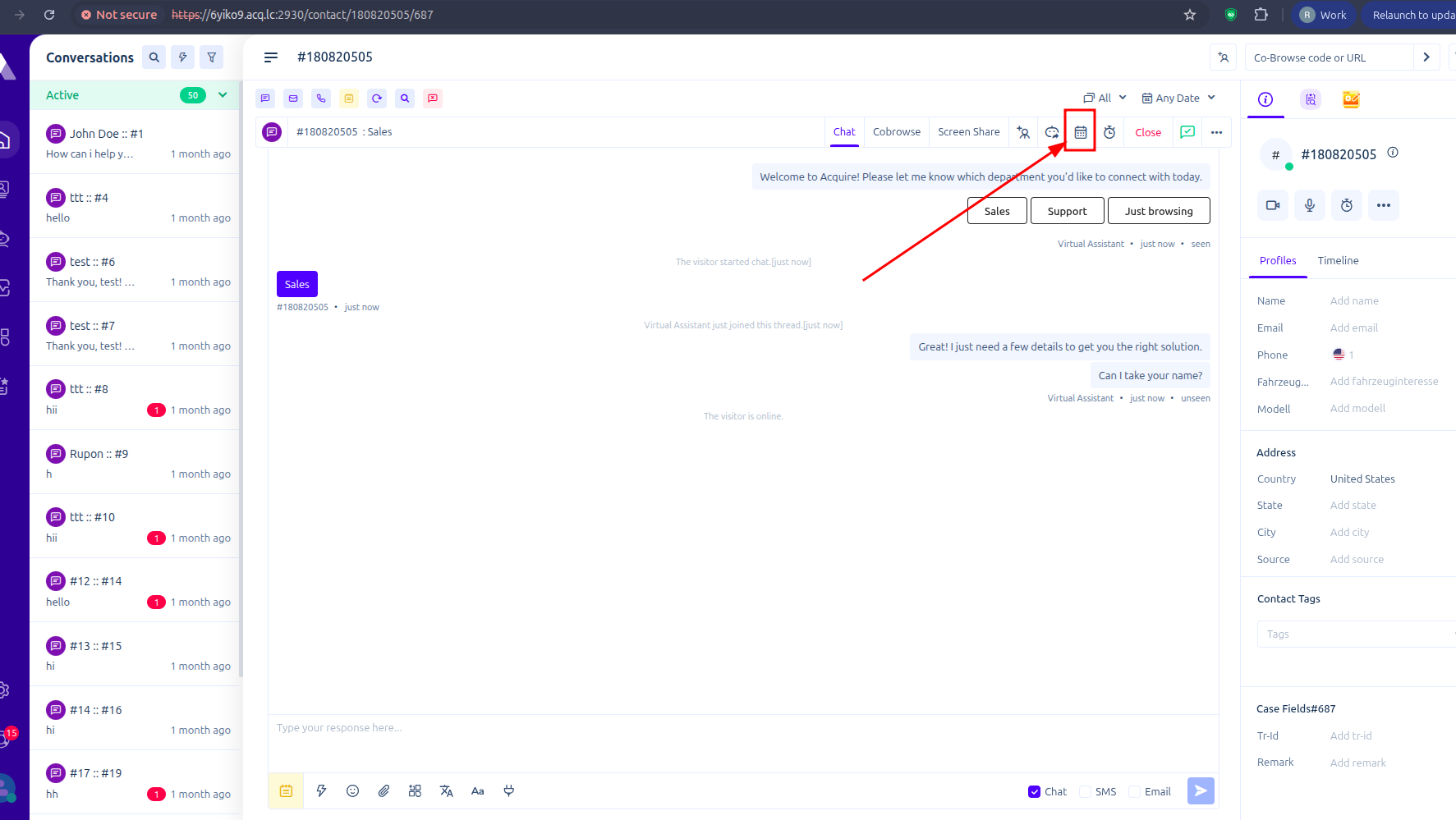
- Open the visitor conversation.
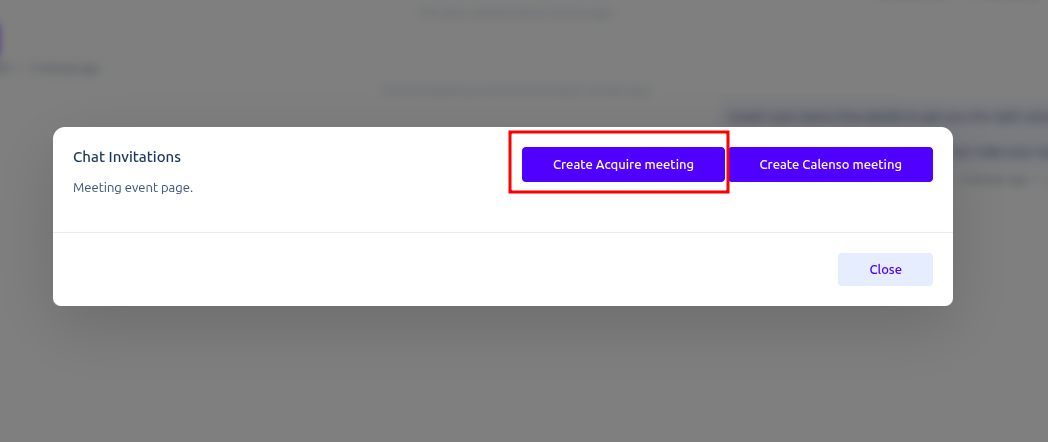
- Click the Schedule Meeting icon from the conversation toolbar.
- Select Create Acquire Meeting.
Select a Date and Time
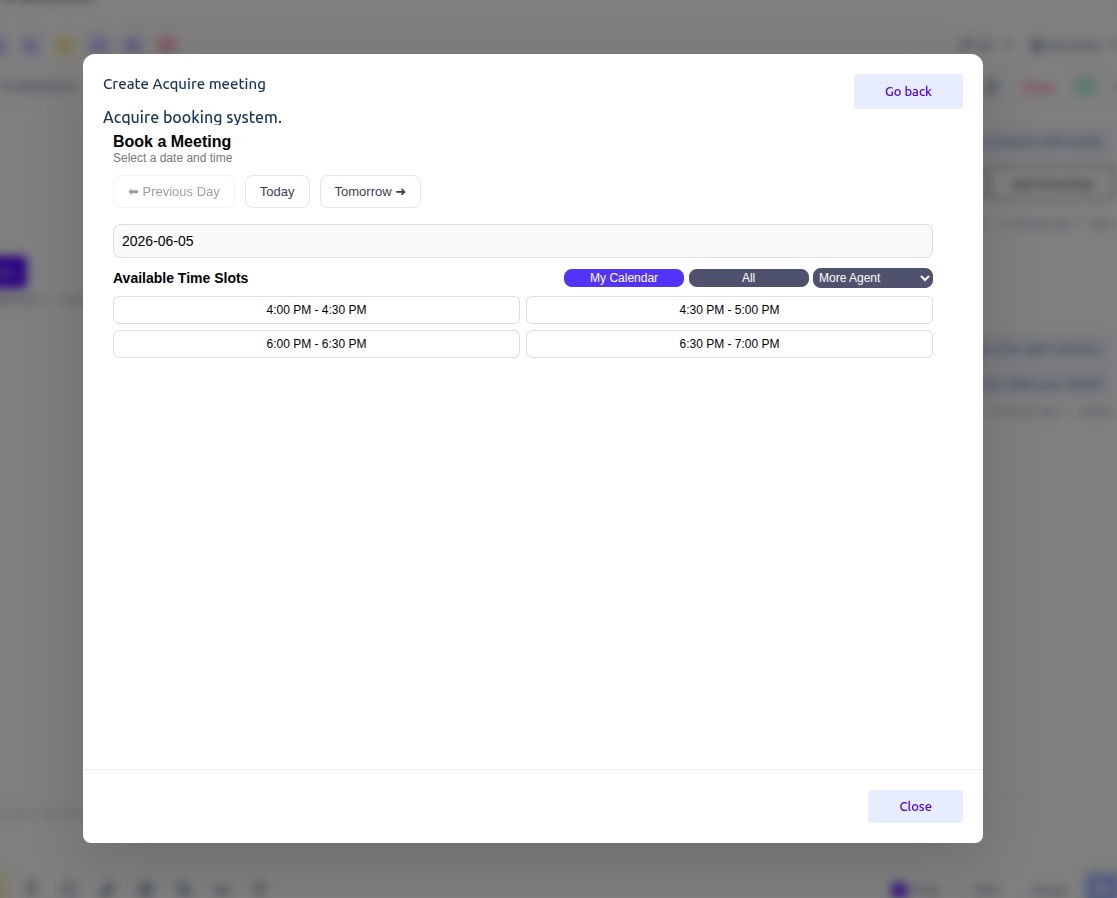
After selecting Create Acquire Meeting, the meeting booking window will open.
The system displays:
- Available booking dates
- Available time slots
- Agent availability
- Calendar filters
Steps - Select a meeting date.
- Choose an available time slot.
- Confirm the booking.
Once a slot is selected:
- The meeting is automatically created.
- The visitor is linked to the meeting.
- The assigned agent is associated with the booking.
- Confirmation emails are sent according to the configured email settings.
- Reminder schedules are applied automatically.
Video ref:
Live Conversation Flow
Once a visitor successfully books a meeting, the Acquire Meetings system automatically handles agent assignment, email notifications, reminders, and meeting initiation.
This creates a seamless experience for both the visitor and the assigned agent.
Automatic Agent Assignment
When a client books a meeting:
- The system automatically assigns an available agent
- Assignment is based on configured availability and booking slots
- The meeting is linked to the assigned operator/agent
This removes the need for manual scheduling and ensures meetings are routed to available team members.
Booking Confirmation Emails
After a meeting is booked, confirmation emails are automatically sent to both:
- The client/visitor
- The assigned agent
Automatic Reminder Emails
The system automatically sends reminder emails before the meeting starts.
Reminders are sent to: The client
Reminder timing is configurable by administrators.
Meeting Start and Live Chat Request
When the scheduled meeting time begins:
- The assigned agent receives a chat request notification
- The client is connected to the meeting conversation
- Both participants can begin chatting in real time
This creates a live communication session directly inside the Acquire platform.
Agent Meeting Notification
At meeting start time, the assigned agent can:
- Accept the incoming chat request
- Open the visitor conversation
- Start live communication immediately
Meeting Management
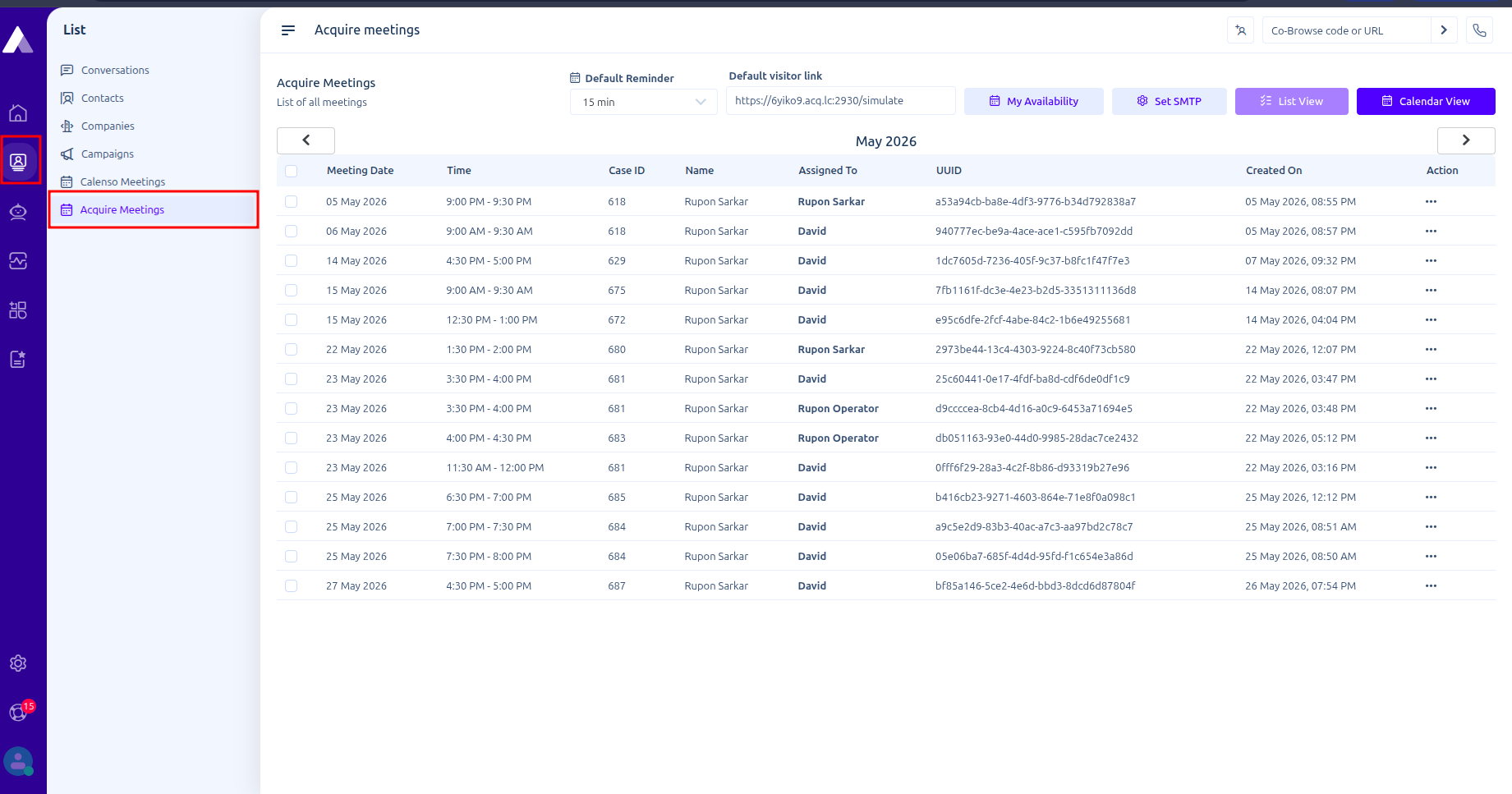
Administrators can manage meetings from the CRM dashboard.
Meetings Dashboard
The dashboard allows you to:
- View meetings by month
- Open booking details
- Reschedule meetings
- Cancel meetings
- Manage reminders
Meeting Reminders
The system supports automatic reminder emails.
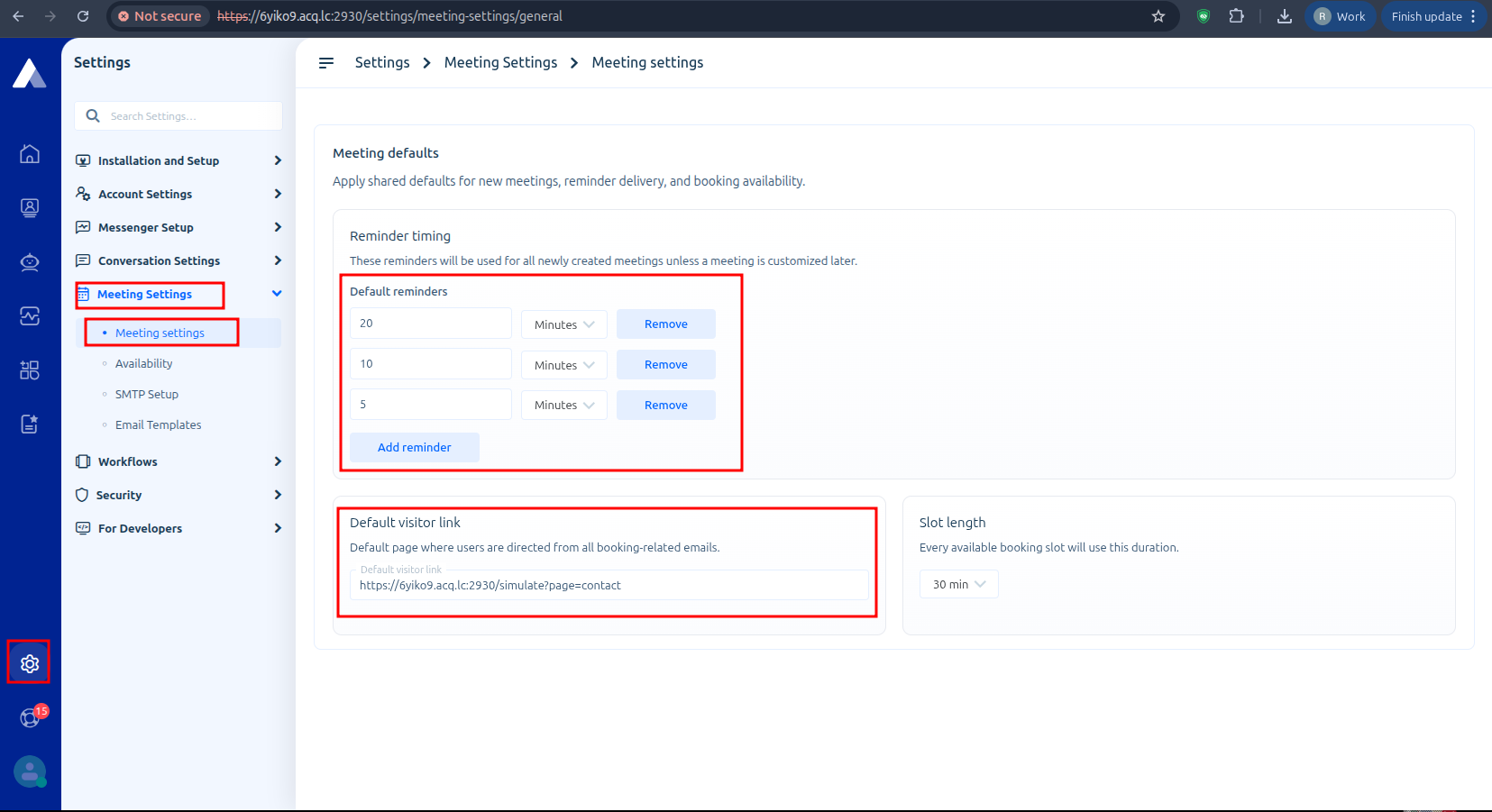
Default Reminder Settings
Administrators can configure:
- Reminder timing
- Default visitor link (When a client opens the meeting details link, they will be redirected to this page.)
Multiple Reminder Options
Admins can set multiple reminders to receive reminder emails before the meeting starts.
Example-
- 5 minutes before
- 15 minutes before
- 30 minutes before
- 1 hour before
- 1 day before
To set it up, click the three dots next to the meeting, select View, then go to Set Meeting Reminders. Click Add Reminder to add more reminders.
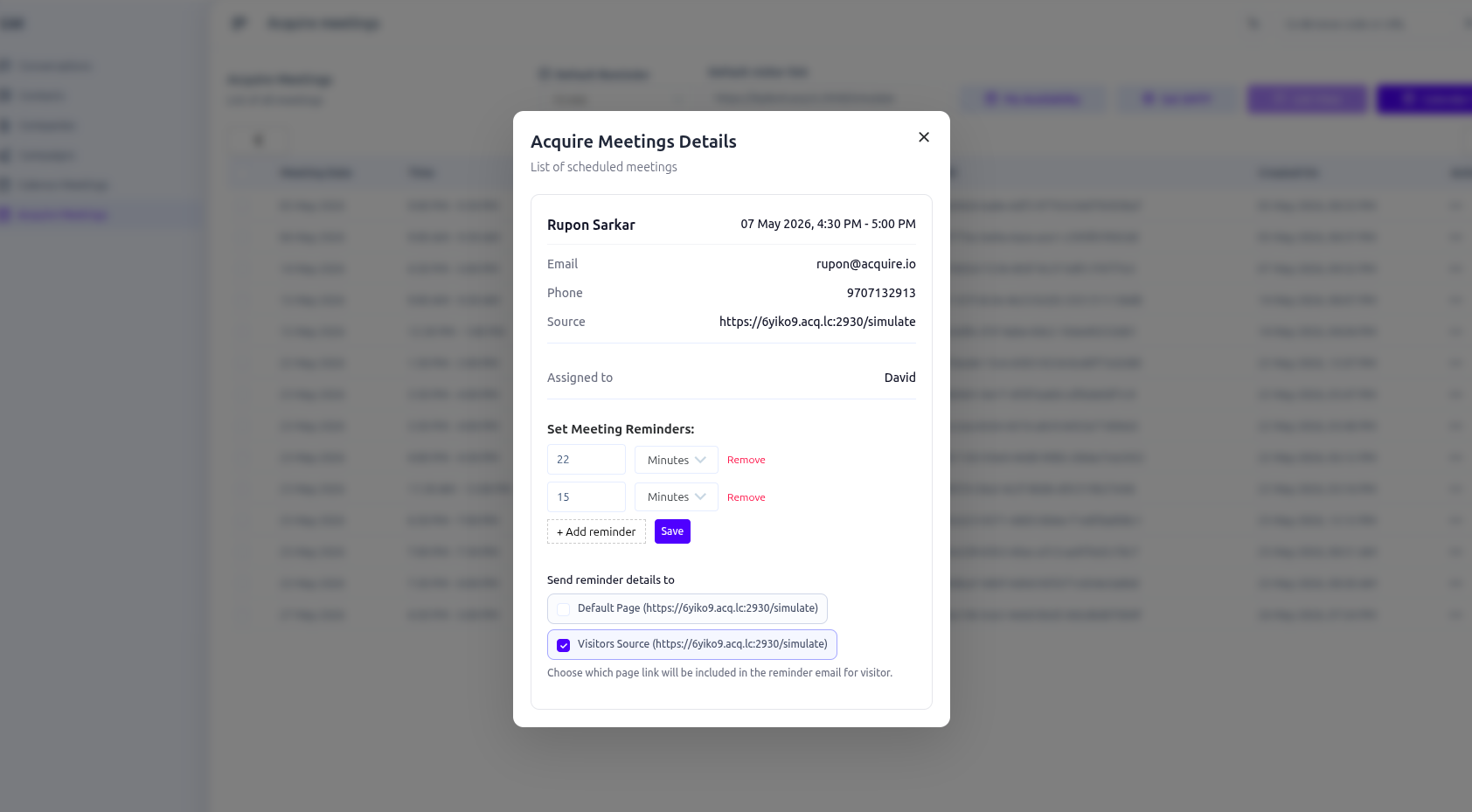
Send reminder details to:
Default Page: Default visitor link set by administrator
Visitors Source: The URL from which the client booked the meeting.
Rescheduling Meetings
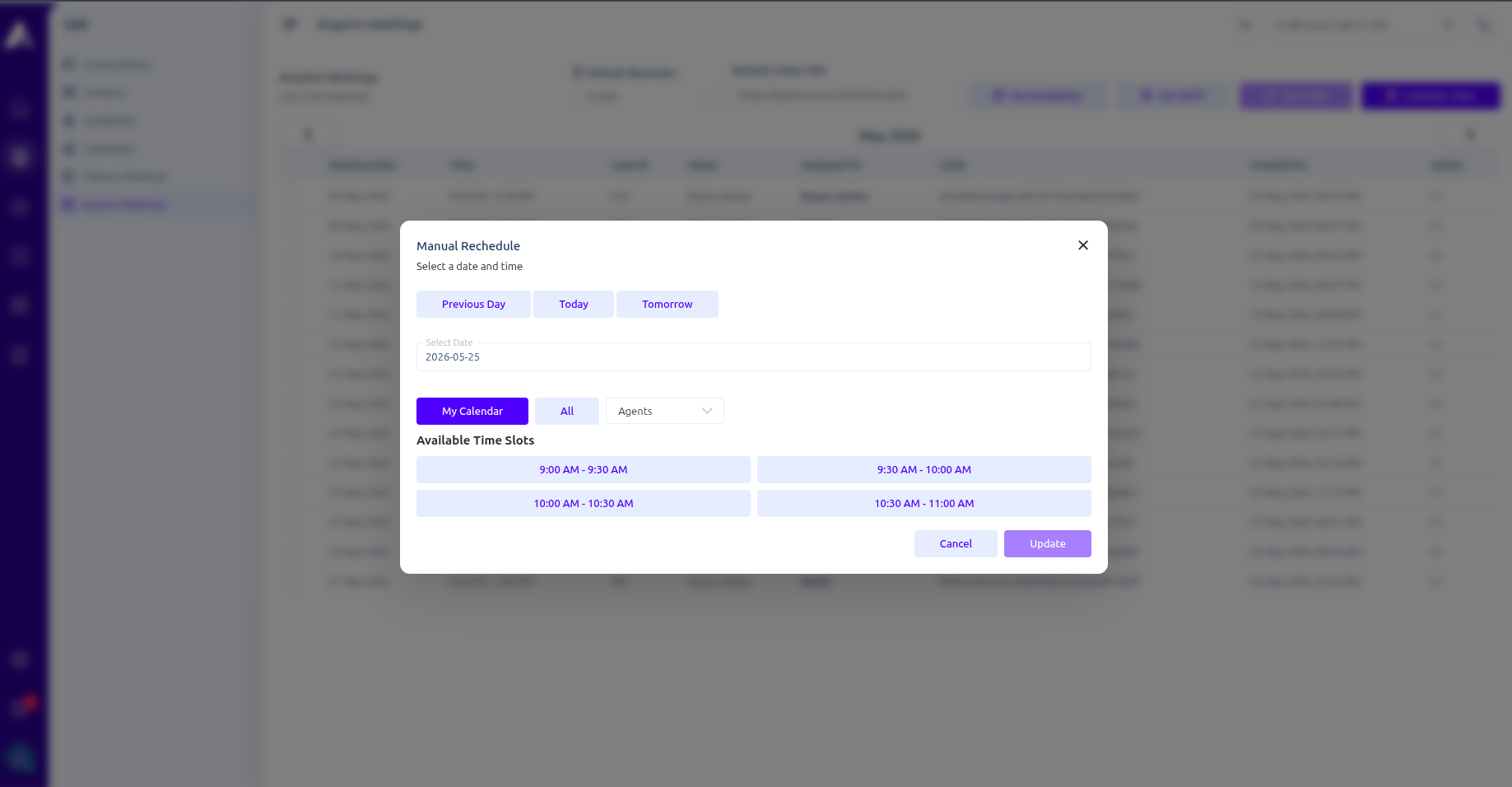
Manual Rescheduling
Steps
- Open meeting details
- Click the three dots next to the meeting
- Click Manual Rescheule
- Select a new date/time
- Update changes
The visitor receives an updated notification email.
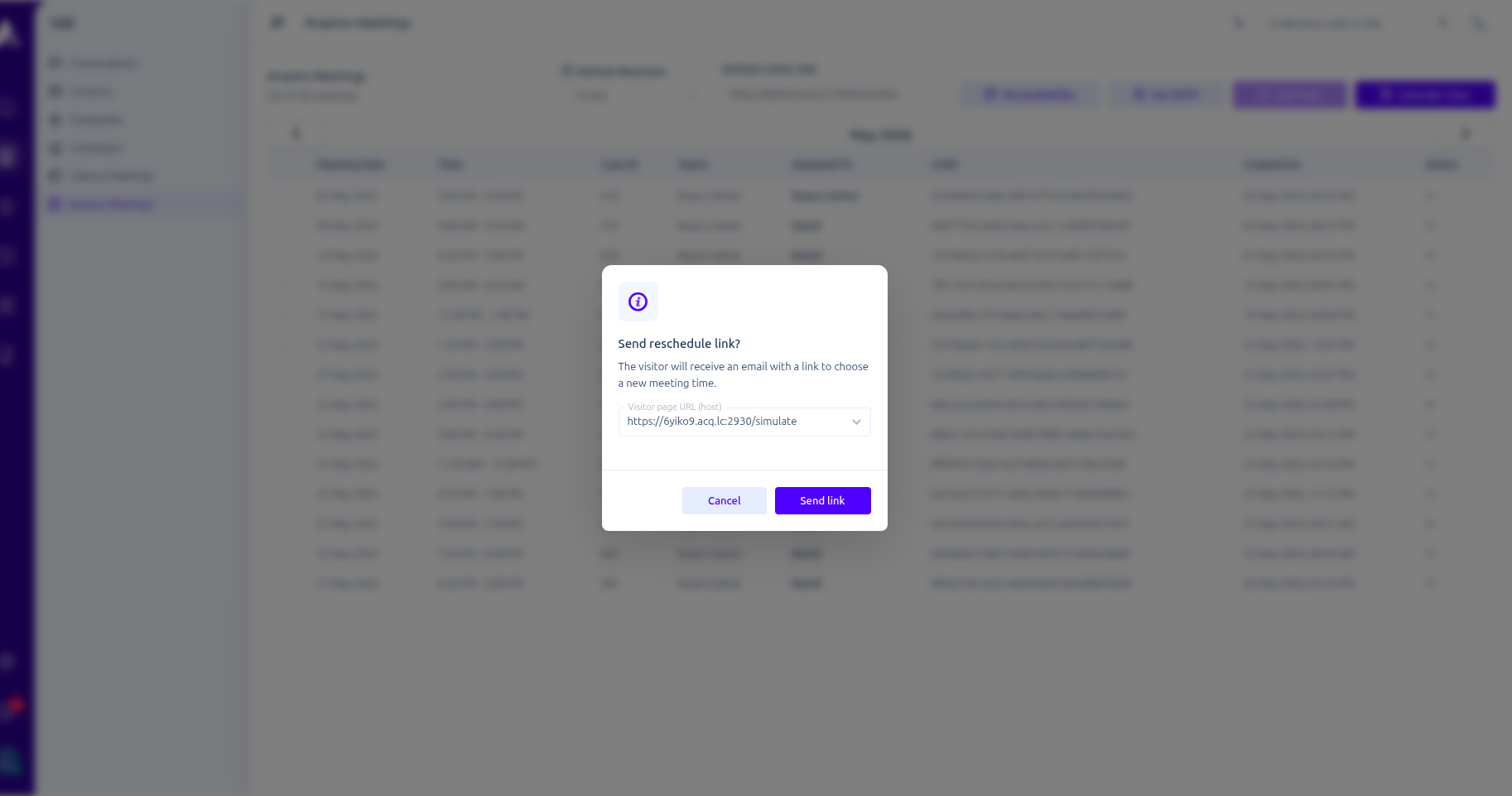
Send Reschedule Link
Steps
- Open the meeting record
- Click the three dots next to the meeting
- Click Send Reschedule Link
- Enter the visitor page link where the widget will open.
- Visitor receives an email
- Visitor selects a new time
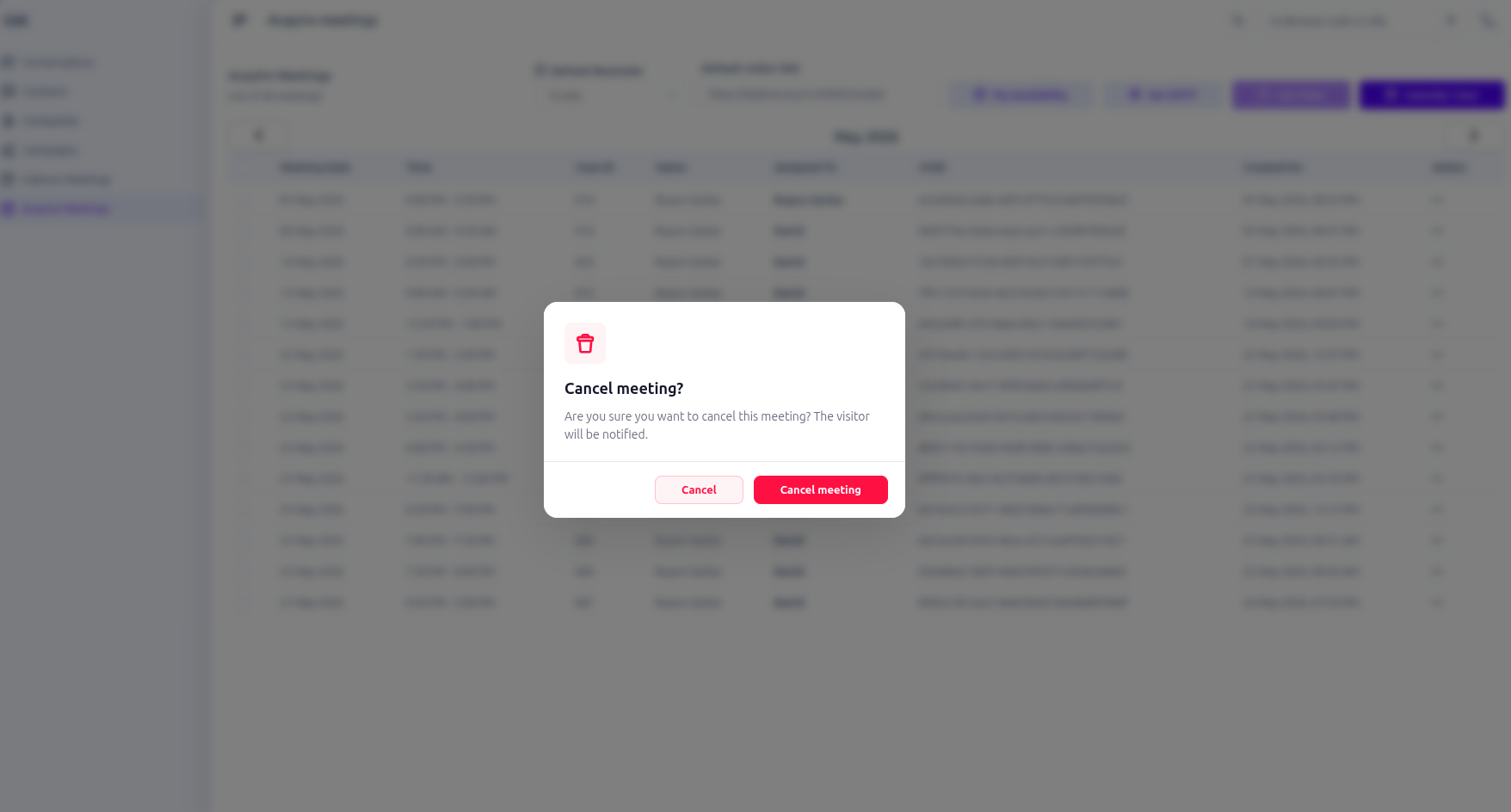
Cancelling Meetings
Steps
- Open the meeting record
- Click the three dots next to the meeting
- Click Cancel
- Confirm cancellation
The visitor receives a cancellation email.
Video ref:
Timezone Handling
- For clients/visitors, meetings are booked according to their browser’s local timezone.
- The system automatically detects the visitor’s timezone during booking.
- Operators/agents will see the meeting time automatically converted to the timezone configured in their profile settings.
Troubleshooting
Slots Not Appearing
Possible Causes
- Agent unavailable
- Exception marked unavailable
- No active availability configured
Reminder Emails Not Sending
Check
- SMTP enabled
- SMTP configuration
- SMTP verification
Timezone Issues
Ensure:
- Agent timezone is configured correctly
- Browser timezone detection is enabled
Best Practices
- Configure weekly availability first
- Use exceptions for holidays
- Test SMTP before going live
- Customize reminder templates
- Keep reminder schedules simple
- Regularly review meeting calendars
End-to-End Workflow Summary
- Configure availability
- Configure SMTP and templates
- Publish booking flow
- Visitors book meetings
- Reminder emails are sent
- Agents manage meetings
- Visitors attend using meeting links
Was this article helpful?

